
TL;DR
CapCut is usually the better choice for creators who want more editing depth, templates, captions, and cross-device flexibility.
InShot is usually the better choice for creators who want a faster mobile workflow, lower cost, and less interface complexity.
The real decision is not which app has more features, but which one matches your publishing style and production demands.
CapCut tends to suit TikTok-heavy and scaling workflows better, while InShot tends to suit simple Instagram-first and solo mobile workflows better.
As teams publish more video, asset retrieval becomes its own problem, which is where a centralized media library can help operationally.
CapCut vs InShot: quick decision matrix
The best choice depends less on the app logo and more on your creator workflow. Use CapCut when editing depth, captions, templates, and TikTok-native speed matter most. Use InShot when you want a lighter mobile editor with fewer moving parts.
Choose CapCut if: you publish short-form video often, need auto captions, templates, stronger effects, and cross-device flexibility.
Choose InShot if: you want fast mobile edits, simple trims, lightweight exports, and a less complex interface.
For teams: the editor is only one part of the workflow. Asset storage, approvals, repurposing, and scheduling matter once production volume grows.
Key Takeaways
CapCut offers more headroom.
InShot offers more simplicity.
Pricing favors InShot for budget-sensitive users.
Workflow flexibility favors CapCut.
Choose based on how you edit every week, not on hype.
Quick Definition
CapCut is a short-form-focused video editor by ByteDance with mobile and desktop availability, stronger template culture, and more advanced editing features.
InShot is a mobile-first video editor focused on fast social content creation, with a simpler interface and lower-cost paid options.
CapCut and InShot are two of the most common answers when creators ask a simple question: which mobile video editor should I actually use? Both apps are widely known, both offer free tiers, and both are built for short-form content. That is exactly why the choice is harder than it looks.
At a distance, they seem similar. Both help you trim clips, add text, change aspect ratios, layer music, and export videos for social platforms. But in practice they solve different problems. CapCut is built for creators who want more editing depth, stronger template culture, and a workflow that can stretch beyond quick phone edits. InShot is built for speed, simplicity, and creators who would rather finish an edit in a few minutes than learn a larger toolset.
That difference matters more now because short-form video is no longer a side format. Reels, TikTok videos, Shorts, product demos, behind-the-scenes clips, and client content all compete for the same production time. Choosing the wrong editor does not just slow down one video. It can create friction across your entire content workflow.
This comparison takes a practical view. Instead of asking which app has the longest feature list, the better question is: which app fits the way you create? If you want advanced editing control, templates, auto-captions, and cross-device flexibility, CapCut usually has the edge. If you want fast edits, lower cost, and a cleaner mobile-first experience, InShot can be the better tool.
CapCut vs. InShot at a glance
If you want the short version, CapCut is usually better for creators who need more power, while InShot is usually better for creators who need more speed.
Choose CapCut if you:
publish frequently on TikTok, Reels, or Shorts
want templates, auto-captions, keyframes, or more advanced transitions
need a desktop option in addition to mobile
expect your editing workflow to become more complex over time
work with client content, recurring campaigns, or reusable assets
Choose InShot if you:
mainly edit on your phone and want a simpler interface
produce straightforward Instagram or social clips
care more about quick turnaround than advanced control
want a lower-cost Pro plan or lifetime option
prefer a shorter learning curve
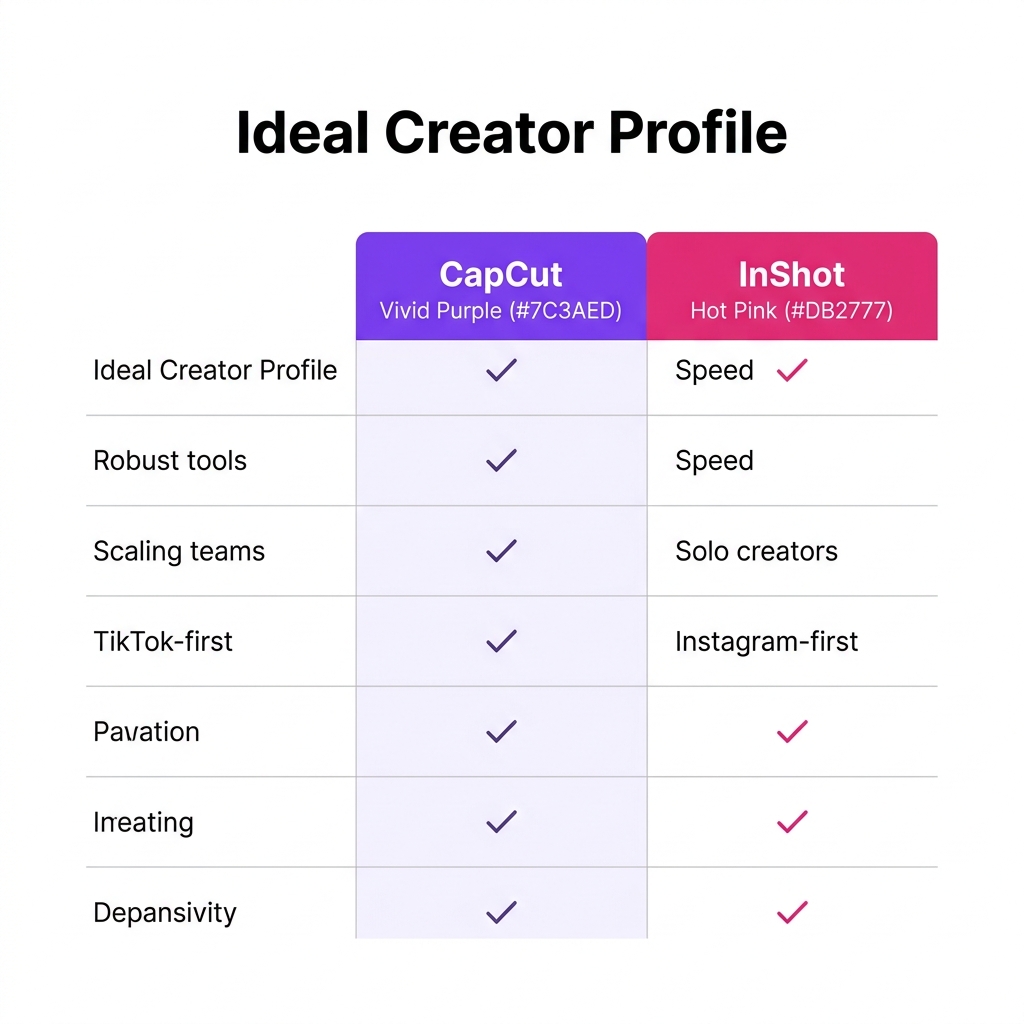
CapCut scales better for trend-heavy TikTok workflows and teams, while InShot excels at fast, solo Instagram production.
The simplest way to think about it is this: CapCut is closer to a lightweight creative suite for short-form editing, while InShot is closer to a fast everyday editor for creators who want to cut, format, polish, and publish without much setup.
Feature-by-feature comparison
Editing depth
CapCut generally offers more room to grow. Its advantage is not just volume of features, but the kind of edits it can support before you outgrow it. Keyframes, speed curves, stronger effect options, auto-captions, and more layered project structures make it easier to produce polished short-form content without immediately moving to a desktop-first editor.
InShot covers the essentials well: trimming, splitting, resizing, text overlays, filters, music, and basic layering. For many creators, that is enough. The gap appears when you want more detailed motion control, more template-driven experimentation, or more complex edit structure.
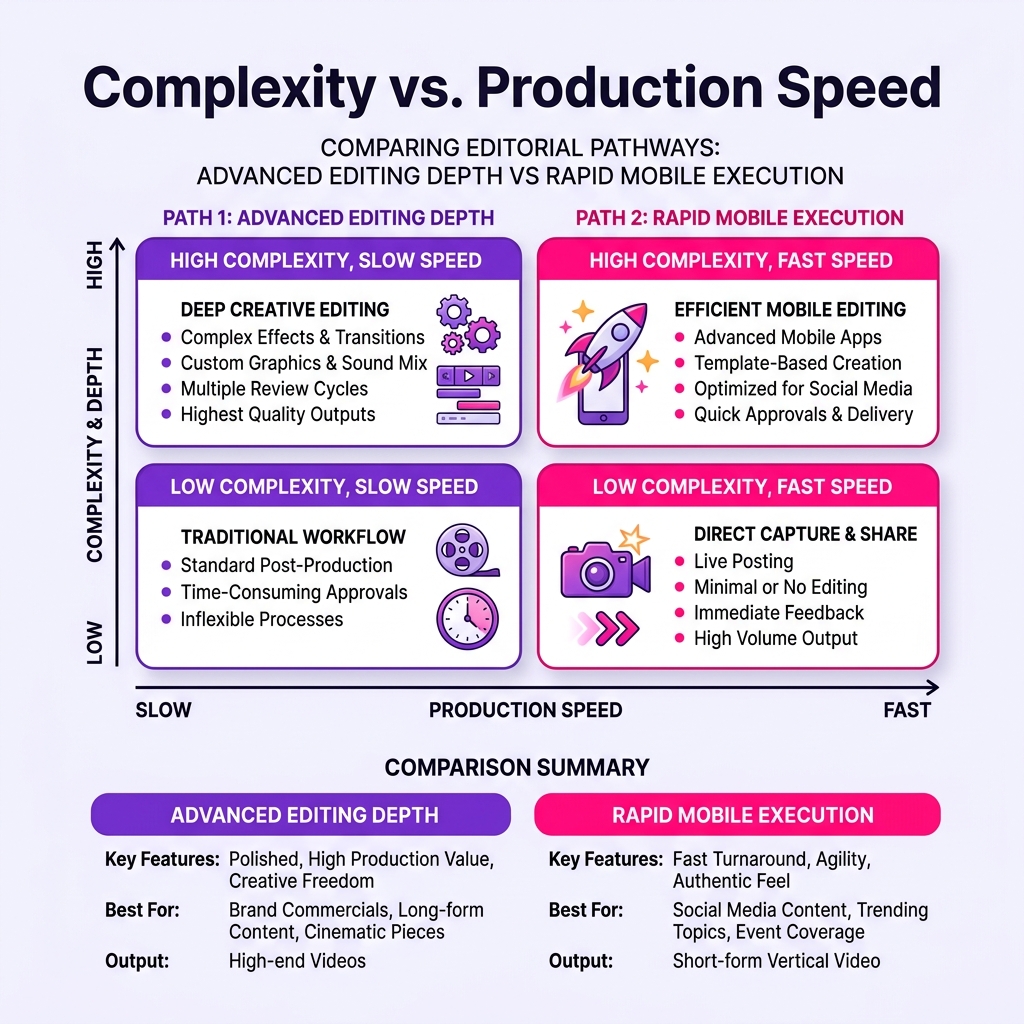
The choice between CapCut and InShot is a direct tradeoff between editing depth and execution speed.
Templates and editing style
CapCut benefits from a much stronger template culture. For creators who work in trend-sensitive formats, that matters. Templates can reduce production time and make it easier to test fast-moving styles, especially in short-form environments.
InShot is more straightforward. It gives you useful effects and design tools, but it is not usually the app creators choose because of template depth. That can be a weakness if you depend on rapid trend adoption, but it can also be a strength if you want a cleaner editing environment with fewer distractions.
Captions and assisted editing
CapCut's stronger position comes from convenience features like auto-captions and a wider set of AI-assisted tools. Exact availability can vary by platform or region, so creators should verify current access before building a workflow around any one feature. Still, the broader pattern is clear: CapCut puts more emphasis on assisted editing.
InShot can handle text overlays well, but it is not usually the first choice for creators who want automation-heavy workflows. If your content depends on subtitles, fast transcription, or repeatable captioning, CapCut is generally more practical.
Platform availability
This is one of the clearest differences. CapCut is available across mobile and desktop environments, while InShot is primarily mobile. That alone can decide the comparison for some users. A creator who starts on a phone and later wants to revise on a computer has a much easier path with CapCut.
If you truly want a phone-only workflow, InShot's narrower scope may not matter. In some cases it even feels cleaner because the app is not trying to become a broader editing system.
Export and workflow continuity
Both apps support standard social publishing needs, but CapCut is usually stronger when a project has to evolve across multiple edits, devices, or versions. InShot is strongest when the workflow is simple: import, cut, format, polish, export, publish.
That is why CapCut often suits creators who publish at scale, while InShot often suits creators who publish with speed.
Pricing and value
InShot has the easier value argument for budget-sensitive users. Its Pro pricing is lower, and the lifetime option can be appealing for creators who want predictable cost. CapCut costs more, but that can still be reasonable if you regularly use its more advanced features and cross-device workflow.
The better value depends on whether you will actually use the extra depth. Paying more for CapCut makes sense if it replaces multiple editing pain points. Paying less for InShot makes sense if you mostly need efficient, repeatable social edits.
Which app fits which creator?
Beginners and solo creators
Beginners often assume they should choose the app with the biggest reputation. That is not always the right move. If you are still learning basic pacing, cuts, captions, and framing, InShot can be a better first fit because it helps you finish faster. Less friction means more repetition, and repetition is what improves content.
CapCut becomes the better beginner tool when the creator is motivated to learn, wants to experiment with templates and effects, or plans to publish heavily on TikTok and short-form platforms from the start.
Instagram-first creators
If your workflow is mainly phone-based and centered on Stories, simple Reels, promo posts, or quick product clips, InShot remains compelling. Its directness is the feature. You can open it, resize the canvas, trim clips, add text, add music, and export without feeling pulled into a larger production environment.
TikTok-heavy creators
CapCut has a more natural fit for creators who think in TikTok-native formats. Templates, effects, and editing rhythm align more closely with how trend-driven short-form video often works. That does not guarantee better performance, but it usually reduces production friction for creators working in that style. Teams exploring a broader trend-driven short-form strategy will usually find CapCut more aligned with experimentation and versioning.
Social media managers and in-house teams
Once multiple campaigns, formats, or approvals enter the picture, the editing question is no longer only about features. It becomes a workflow question. Can you reuse versions? Can you move between devices? Can another person pick up the project logic? CapCut is generally more suitable in that environment because it offers more headroom and a more expandable editing model.
This is also where asset organization starts to matter. If teams reuse brand intros, approved clips, music beds, voiceovers, screenshots, or client media across campaigns, a centralized system becomes useful. Tareno Media Library fits here as a practical organizational layer: one place to keep approved media easier to find, review, and reuse without claiming that the library itself improves content performance.
Here is what that centralized asset structure looks like in Tareno:

A centralized media library decouples the raw assets from the editing app, allowing teams to retrieve approved clips regardless of who edits them.
Agencies and recurring client work
Agencies usually need more than quick exports. They need repeatability. The more often you create variations, client revisions, or platform-specific edits, the more CapCut's extra editing depth starts to justify itself.
Just as important, agencies often build content from larger source material. If your team already turns webinars, interviews, podcasts, or tutorials into shorter clips, it helps to repurpose longer video scripts into reusable content instead of treating every short edit as a brand-new project.
Small business owners
A small business owner making weekly updates, product videos, or simple promotional clips may honestly be better served by InShot. The best editor is often the one that gets used consistently. If advanced tools stay untouched, simplicity wins.
The LENS framework for choosing between CapCut and InShot
A useful way to make the decision is the LENS Framework: Learning curve, Editing depth, Native workflow, Spend.
L — Learning curve
How much interface complexity are you genuinely willing to tolerate?
If you dislike exploring menus, testing templates, or managing a more feature-dense workspace, InShot is often the safer choice. If you are comfortable learning a richer tool because it gives you more creative control later, CapCut makes more sense.
E — Editing depth
What kind of edits do you actually need to make every week?
If you mostly trim, resize, add text, add music, and export, InShot can cover the job. If you need keyframes, more advanced timing, more effect variety, or better support for layered edits, CapCut is usually stronger.
N — Native workflow
Where do you publish, and how do you work across devices?
A creator who shoots on a phone, edits on a phone, and publishes immediately may never feel limited by InShot. A creator who starts on mobile, revises later on desktop, or adapts clips across platforms usually benefits from CapCut's broader ecosystem. This is especially relevant for teams building a watermark-free short-form workflow across platforms.
S — Spend
What cost structure are you comfortable with over time?
InShot's lower subscription price and lifetime option will appeal to many solo creators. CapCut can still be worth the higher spend, but only if the extra features meaningfully reduce effort or expand what you can publish.
Pros and cons table
AppMain strengthsMain trade-offsCapCutricher editing depth, template culture, captions, desktop availability, stronger scaling potentialhigher cost, more complexity, some features vary by region or planInShotsimple workflow, lower price, mobile-first speed, easy for routine social editsless advanced control, no true desktop path, fewer scaling advantages
Common buying mistakes creators make
Choosing based on popularity alone
CapCut gets more attention in many short-form creator conversations, but popularity does not automatically make it the right fit. A creator who only needs quick edits may gain very little from a larger toolset.
Choosing based on price alone
InShot can look like the obvious winner on cost, especially for solo creators. But the cheaper tool is only cheaper if it does not create extra friction later. If you outgrow it quickly, the savings can disappear in lost time.
Confusing feature count with workflow fit
More features can help, but they also create more decisions. Some creators need that control. Others need fewer moving parts. The better app is the one that supports how you work repeatedly, not the one with the longest list.
The real question: power or speed?
Most creators do not need the absolute maximum feature set. They need an editor that fits their production reality.
If your biggest problem is that your current workflow feels limiting, CapCut is the better answer. If your biggest problem is that editing takes too long and creates too much friction, InShot may be the better answer.
That distinction is important because creators often overbuy complexity. They choose the app that looks more powerful in tutorials or social posts, then use only the most basic functions. In other cases they underbuy capability, then run into limits as soon as the content strategy becomes more ambitious. The right choice sits between those two mistakes.
If you are also refining the role of captions, sound, and pacing inside short-form edits, the related guide on audio-first content strategy adds a useful workflow layer beyond the editing app itself.
Quick FAQ
Is CapCut better than InShot for beginners?
Not always. InShot is often easier for true beginners because it feels more direct and less crowded. CapCut becomes the better beginner option when the creator wants to learn a richer workflow from the start.
Is InShot enough for professional social content?
It can be, especially for simple social deliverables, routine promos, and fast mobile-first edits. The main limitation appears when the workflow needs more revision depth, more complex effects, or better cross-device continuity.
Which app is better for teams?
CapCut is usually the better team-adjacent choice because its broader workflow and editing headroom create fewer bottlenecks as content volume grows.
Final verdict
There is no universal winner between CapCut and InShot, but there is a clearer winner for each type of creator.
CapCut is the better choice for most creators who are serious about short-form growth, cross-device flexibility, and richer editing options. It offers more room to experiment, more headroom for advanced edits, and a workflow that can scale as content demands increase.
InShot is the better choice for creators who value speed, simplicity, and lower long-term cost over feature depth. It is especially useful for mobile-first creators, small business owners, and anyone who wants a reliable editor without a bigger learning burden.
If you are undecided, use this rule: choose InShot if your biggest problem is finishing content quickly. Choose CapCut if your biggest problem is executing more ambitious ideas cleanly.
As output grows, the bottleneck often shifts from editing skill to retrieval: which clip was approved, which version is current, and where reusable assets are stored. A centralized media library can reduce that workflow friction.
For many creators, the real decision is not which app is objectively better. It is which app helps them publish consistently without creating unnecessary friction. That is the comparison that actually matters.