Yes. Claude Cowork can read a PDF in a folder you have connected and write social media post drafts from it. Anthropic documents PDFs as supported input and says that Claude can only read and write files in folders you've connected. What it should not do alone is decide which parts of the brief are public, check dates and addresses, or publish. This guide shows a complete PDF-to-drafts run for Claude Cowork PDF social media drafts, with the approval points marked.
Quick definition
Claude Cowork is Anthropic's agent mode in which Claude works on files you grant it access to and asks for approval at set points. "PDF to drafts" means every claim in every post traces back to a page of the PDF. PDF input is documented for Anthropic's file feature in general, so the run below is an untested inference.
TL;DR
- Cowork can turn a PDF or campaign brief into drafts. Treat the output as a first version for a human editor.
- Connect only a cleared copy of the PDF (Step 1).
- Run in two passes: a fact table with a page number per fact, then drafts, each with a "facts used" list.
- Start in Manual approval mode. A draft is not a post: scheduling or publishing needs a person's approval.
- Paid ads: Cowork should be able to write ad copy as text from the fact table (untested); campaign setup is outside what the sources document.
What Cowork does alone, and what needs a person
| Step | Cowork alone | Human check needed | Never alone |
|---|---|---|---|
| Extract dates, addresses, hours, tiers into a table | Yes | Compare table with the PDF | |
| Decide which pages are public | Yes, you remove the rest before connecting | Yes | |
| Write drafts per channel | Yes | Read every draft | |
| Flag sentences with no source in the PDF | Yes | Confirm flags | |
| Save as drafts in a connected tool | Yes | Review text, image, account, time | |
| Schedule or publish | Yes, explicit approval | Yes |
The reasoning behind the "never alone" column is in the sources. Anthropic's help article says Auto mode is "not perfect" and advises staying close when actions involve things like messages sent as you. The same article does not say whether Cowork can publish to social networks on your behalf, so this guide does not claim it either way.
The worked example: a winter coat drive
This is a constructed teaching example. The organisation, dates, places and texts are invented to show the method; nothing here is a tested run or a result.
Situation. A volunteer coordinator at a local food bank has a 6-page PDF called "Winter Coat Drive". Pages 1-4 and 6 hold public information. Page 5 holds internal notes: budget, a partner that has not confirmed, and a volunteer rota with private phone numbers.
Goal. One LinkedIn post for local businesses and three Instagram captions for residents.
Step 1: Set up access
Export a cleared copy of the PDF that contains only pages 1-4 and 6, so page 5 is physically absent. Put that copy alone into a new folder, for example coat-drive-2026, and connect only that folder. Keep the original with page 5 outside it. Because Claude can only read what is in connected folders, a prompt rule alone is a weaker control than leaving the page out. Check the file size too: the help article gives 30MB as the maximum per file for upload and download.
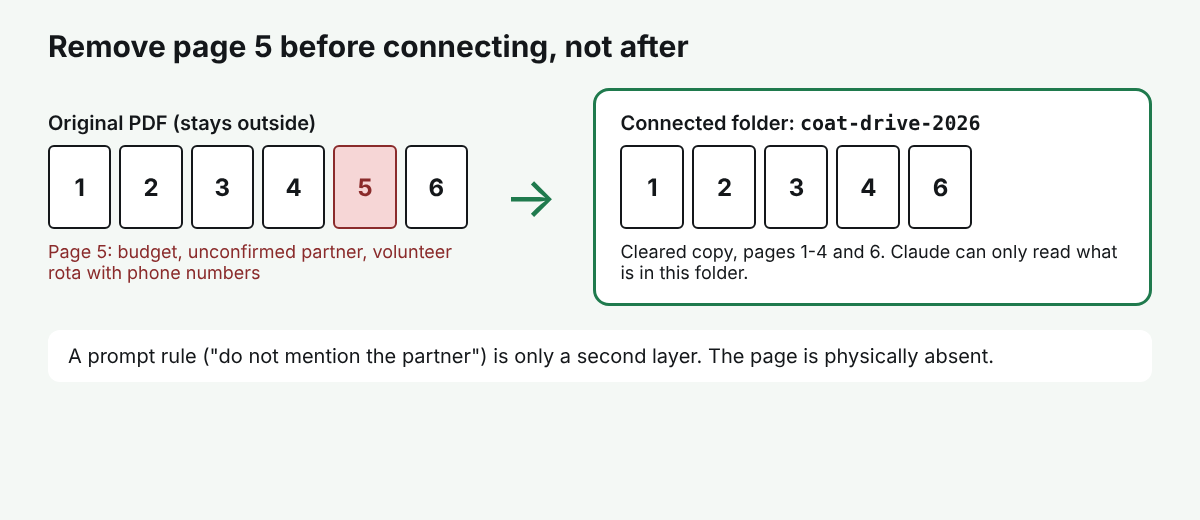
Teaching example: the internal page never enters the connected folder.
Choose Manual approval mode for this first run. Cowork's plan-and-approve behaviour is described on the product page; Cowork is available on paid Claude plans (Pro, Max, Ultra, Team, Enterprise).
Step 2: Extract facts with page numbers
Prompt template:
Read coat-drive-2026/winter-coat-drive-cleared.pdf.
Use only what is in this file. As a second layer: do not mention
the partner "Harbor Outfitters" (not confirmed), budget or rota.
Create a table: fact | value | page number.
Cover: campaign dates, drop-off points with opening hours,
donor tiers, coat goal. Do not infer anything that is not written.
Illustrative output:
| Fact | Value | Page |
|---|---|---|
| Campaign dates | 15 Nov - 14 Dec | 1 |
| Drop-off 1 | Central Library Hall, Mon-Fri 10:00-18:00 | 2 |
| Drop-off 2 | St. Anne's Parish Hall, Sat 09:00-13:00 | 2 |
| Drop-off 3 | Harbor Street Market, daily 08:00-20:00 | 3 |
| Donor tiers | Neighbor, Business Partner, Sponsor | 4 |
| Goal | 800 coats | 1 |
| Last collection day | 14 Dec | 6 |
Step 3: Human check of the fact table (about five minutes)
Open the cleared PDF next to the table and tick each row. This is the first approval point. Pay attention to the failure Anthropic warns about: hidden or malicious instructions in external files can trick Claude, and the article advises monitoring Claude while it works with files. A brief you wrote yourself is low risk; a PDF received from a third party deserves a look at what it actually contains before you hand it over.
Step 4: Draft with sources attached
From the approved fact table only, write:
- 1 LinkedIn post for local businesses (call to become a Business
  Partner or Sponsor)
- 3 Instagram captions: (a) drop-off logistics, (b) why winter
  coats, (c) last-call reminder
For each draft add "Facts used: <fact rows>" and a list of any
sentence that has no source in the table. No invented numbers.
Illustrative output for two of the four drafts:
LinkedIn (Business Partner call)
Winter is coming, and 800 coats is our goal for the coat drive. Donor tiers include Business Partner and Sponsor for local companies. Coats can be dropped off at the Central Library Hall, St. Anne's Parish Hall and Harbor Street Market until 14 December. Message us to join.
Facts used: goal, donor tiers, three drop-offs, last collection day. Unsourced: "Winter is coming" (opener, no fact); "Message us to join" (the table has no contact route).
Instagram (c) last-call reminder
Time to bring a coat. Harbor Street Market is open daily 08:00-20:00, St. Anne's Parish Hall on Saturday 09:00-13:00. Collection ends 14 December.
Facts used: drop-off 2 and 3, last collection day. Unsourced: none.
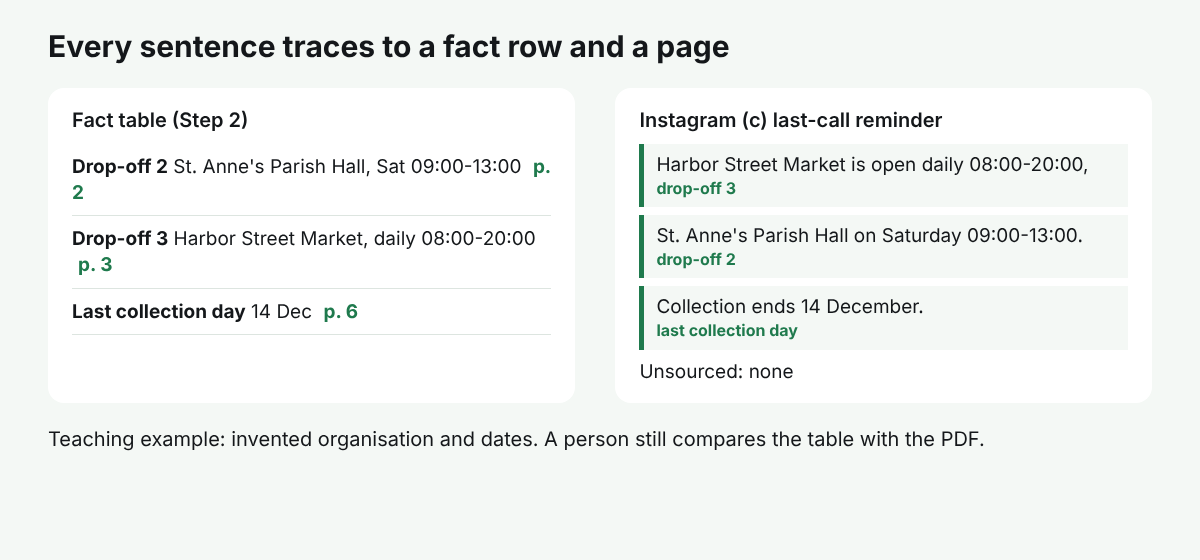
Teaching example with invented data.
Step 5: Fill the draft table
| Post | Channel | Source pages | Flagged | Status |
|---|---|---|---|---|
| 1 Business Partner call | 1, 2, 3, 4, 6 | Opener sentence; "Message us to join" (no contact route) | Needs edit | |
| 2 Drop-off logistics | 2, 3 | None | Ready for review | |
| 3 Why coats | 1 | "Many neighbours go without" has no source in the PDF | Remove or source | |
| 4 Last call | 2, 3, 6 | None | Ready for review |
The coordinator removes or sources flagged lines. Without a connector, the drafts live in a document and are pasted by hand. That is a valid route.
Step 6: Send to Tareno as drafts and approve
With the Tareno plugin or MCP connection, Cowork can save the texts as drafts. Tareno's Cowork page describes the flow: you provide an approved source and audience, Cowork creates drafts in Tareno and returns draft IDs, and a person reviews text, media, account and time. It says "A draft is not a post." Per the Tareno MCP documentation, Cowork can create drafts directly and request approval for scheduling or publishing, and get_action_status shows whether that approval is pending. The Tareno agent catalog lists the Claude Cowork connection as tested, using OAuth. Check the plan you need for the connection on the pricing page and the Cowork setup page before relying on it.
A sensible first call is read-only: ask Cowork to list your connected accounts before it creates anything.
The coordinator then checks, in Tareno, four things per draft: text, image, target account and time. LinkedIn (text, image, video, company updates) and Instagram (feed posts, Reels, Stories, Carousels) take different formats, so the image for Instagram has to be chosen, not generated from the PDF text. The last approval, scheduling or publishing, stays with the person.
For channel-specific source handling, compare Cowork’s brief-to-Instagram-drafts workflow with its white-paper-to-LinkedIn workflow. Both are related drafting examples; they do not establish that this coat-drive sequence was executed.
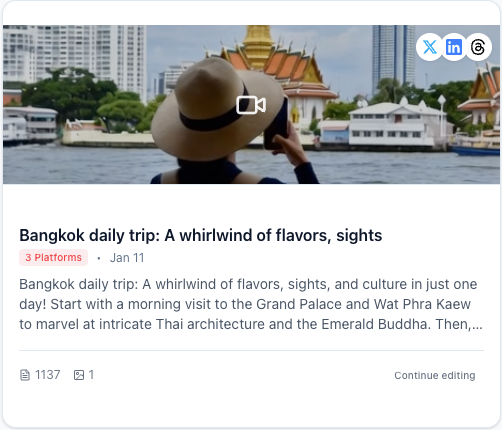
A saved draft gives the reviewer an identifiable item to open before any scheduling request. This existing draft-card capture shows the title, destination badges and text preview; it is not output from the coat-drive example.
Where a human must approve
1. Cleared copy      -> internal pages removed by you, before connecting
2. Fact table        -> compared with the PDF
3. Each draft text   -> read, flagged lines resolved
4. Image + caption   -> fit checked per channel
5. Account + time    -> set in Tareno
6. Publish/schedule  -> approval action confirmed
Mistakes and limits
- Internal pages leak into drafts. See Step 1; the prompt rule and "facts used" list are only second layers.
- Plausible but unsourced sentences. Ask for flags, then delete or source them. Tareno's Cowork page says Cowork cannot judge brand fit when pairing captions with images, so that pairing stays a human call.
- Plugins and skills. You do not need a third-party plugin or skill for this workflow. If you use one, take it from a trusted source: Anthropic's Agent Skills docs say to use Skills only from trusted sources.
- Usage. Anthropic's product page says Cowork "consumes limits faster than Chat", so long PDFs and repeated rewrites count.
- Character limits. Platform limits were not checked for this guide. Check each network's current rules before approving.
What about paid ads?
This guide is about organic post drafts, and none of the Claude or Tareno pages checked describes creating, targeting or managing paid ad campaigns. What you can safely do: reuse the approved fact table and ask Cowork for ad copy as plain text, for example three headline variants and two short body texts, each with a "facts used" list, then review them like any other draft. Campaign setup, targeting and budget happen in the ad platform itself and are outside this SOP. Check that platform's current ad policies before you submit the copy.
Plan check for a small team
The Free plan has 2 channels (enough for LinkedIn plus Instagram) and up to 15 posts scheduled at a time. Starter, at the US price of $19/month billed monthly or $15/month billed yearly, has 5 channels and up to 100 posts scheduled at a time. Check the plan requirements for the Cowork connection on the pricing and Cowork setup pages before you plan around it. On the Claude side, Cowork needs a paid Claude plan.
When to use it, when not
| Use it when | Do not use it when |
|---|---|
| The brief has clear facts: dates, places, tiers | The PDF is mostly opinion or sensitive internal material |
| You can export a cleared copy | You cannot separate public from internal content |
| A person reviews every draft | You want unattended publishing |
| You need several channel variants from one source | You need ad campaign setup (ad copy as text is fine) |
Key takeaways
- A person decides what is public and what goes live.
- Facts first (table with page numbers), copy second.
- Ads: copy as text only.
FAQ
Can Claude Cowork read a PDF campaign brief?
Yes, PDFs are supported input in Anthropic's file documentation (30MB per file; see Step 1).
Can Claude Cowork post to LinkedIn or Instagram by itself?
Anthropic's article does not say; with Tareno, publishing requires approval (Step 6).
Which approval mode should I use?
Manual (see Step 1).
Is it safe to give Cowork a PDF with internal notes?
Not as is; connect only a cleared copy (Step 1).
Does this work for ads?
Ad copy as text, yes; campaign setup is not documented (see the ads section).
Do I need Tareno?
No; without a connector you paste the texts yourself (see Tareno for agents).
Conclusion
Cowork is a good fit for the repetitive part of turning a campaign PDF into channel drafts, as long as the facts are checked first and a person approves what goes live. If you want a place where those drafts wait for review and approval, connect Cowork to Tareno using the Claude Cowork setup page.