How to Install a Social Media Plugin in Claude and Connect Your Accounts

To install a social media plugin in Claude, open Customize, go to Plugins, find the plugin and add it. Then sign in to the service when Claude asks you to. Claude does not hold your social accounts. You connect those in the service's own dashboard. Afterwards you check the link with a test request in a new conversation. This guide walks through that path with Tareno as the example and shows where a human approval step belongs.
TL;DR
- Plugins need a paid Claude plan according to Claude's plugin documentation: Pro, Max, Ultra, Team or Enterprise. The Free plan is not mentioned there.
- Install path in the Claude docs: Customize > Plugins > Discover > Add. Tareno's own guide describes it as Customize > Plugins, then search for Tareno.
- Social accounts are connected in the Tareno dashboard, not inside Claude. Check the result by asking Claude to run
list_accounts. - Drafts are created directly. Scheduling and publishing create a pending action that a person approves in the Tareno dashboard, in Tareno.
- If tools are missing, open a new conversation, then disconnect and reconnect once.
Quick definition
In Claude, a plugin bundles skills, commands and connectors into one installable package. A connector is the link between Claude and one external service, for example a scheduling tool.
Plugin, directory connector or custom connector?
Claude offers three routes. Pick by what the service offers and how much setup you want.
| Route | Where in Claude | Use it when | Source |
|---|---|---|---|
| Plugin | Customize > Plugins > Discover > Add | The service is listed as a plugin. Skills and connector come together. | Plugins article |
| Directory connector | Customize > Connectors > "+" > pick connector > Connect | Only the link is needed, for example a listed scheduler. | Connectors article |
| Custom connector | Customize > Connectors > Add > Custom > Web | The service is not listed. The server must be publicly reachable. | Connectors article |
Two details from the Claude docs affect the choice. Plugins added on web or desktop are saved to your account and apply in Chat, Cowork and Claude Code. Custom connectors are open to Free users too, who get one.
For Tareno, the Claude setup page lists the plugin route first (with a Community label as of 26 October 2026) and offers an optional custom connector at https://tareno.co/api/mcp. This guide uses the plugin.
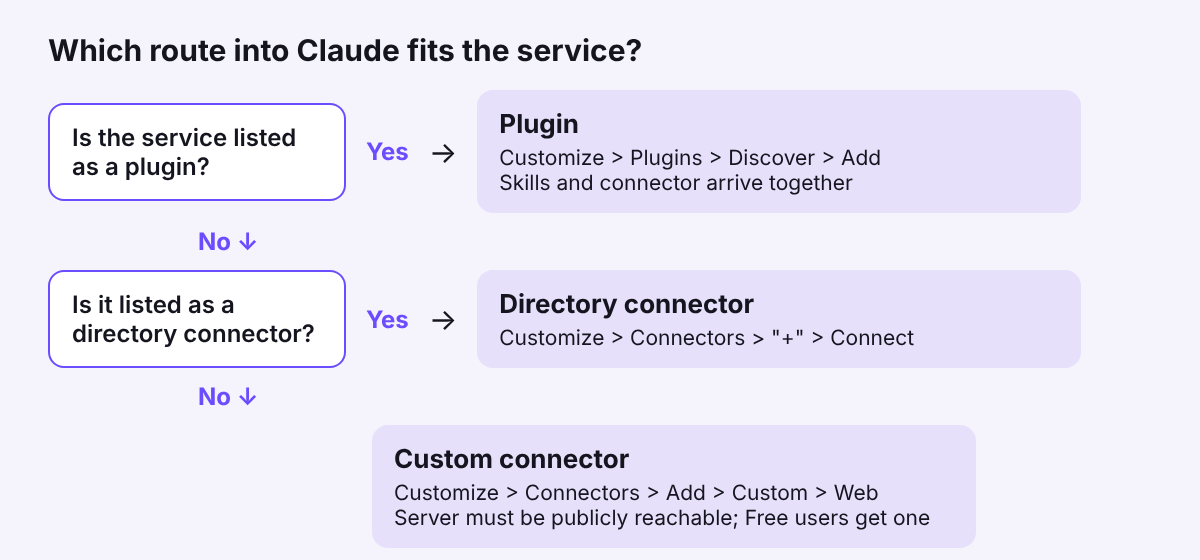
Choosing the route into Claude, based on the Claude help articles on plugins and connectors.
A word on safety before you install anything. Claude's own directory pages carry the warning "Only use connectors from developers you trust", for example on the Metricool connector page. Treat any plugin that can reach your social accounts the same way.
Worked example: a physiotherapy practice
The following is a constructed teaching example, not a recorded run. Claude's menus and Tareno's screens may differ slightly from the description, and the practice is invented.
A two-person physiotherapy practice wants a weekly exercise tip on Instagram and LinkedIn, plus occasional announcements of new services. The source material is a handout PDF, "Neck mobility at the desk", and three phone photos of the exercises. One document should become two posts.
Decision: chat or Cowork
Because one input should yield several outputs, the practice chooses Cowork rather than plain chat. Tareno's Cowork page describes this pattern: Cowork reads source documents, and a report can become LinkedIn, Facebook and Instagram posts. In the Claude docs, the Cowork tab comes first and Customize second. Plugins installed in either place apply in both, as noted above.
The practice needs two channels, which the Tareno Free plan covers (2 channels, 15 scheduled posts, 10 AI credits per month). Channels are not the only gate, though. Tareno's Claude page says you need "an account with MCP access", and the current MCP documentation lists Trial, Pro and Business access. The pricing page lists "Automation API access" as No on Free and Starter and Yes on Trial, Pro and Business. Free and Starter do not include MCP access. Pro costs $49/mo billed monthly or $37/mo billed yearly (US price) and adds X / Twitter. The 14-day trial needs a payment method, and billing starts after the trial unless you cancel first.
Step 1: Check the Claude plan
Open your account settings and confirm you are on Pro, Max, Ultra, Team or Enterprise. On Team or Enterprise, an owner may have to enable the connector under Organization settings > Connectors, and each user then authenticates individually (Claude connectors article). Which Claude plan the Tareno plugin itself requires is not stated on Tareno's pages; the Claude docs name only paid plans for plugins.
Step 2: Install the plugin
Customize > Plugins > search "Tareno" > Add
The Claude docs write this as Customize > Plugins > Discover > Add. Tareno's guide omits "Discover". We have not verified whether both describe the same view, so follow the screen you see: find the plugin list, search for Tareno, and look for the Community label before adding. Tareno's own page dates that label to 26 October 2026, so confirm the current listing in Claude.
Step 3: Sign in with OAuth
Claude sends you to Tareno to log in and authorize. Review the permissions on that screen before accepting. After authorization the tool list refreshes, per Tareno's Claude plugin docs. Use the Tareno account that owns the practice's workspace. A wrong Tareno login can lead to an empty list; Tareno's guide says to check that you approved the correct account.
Claude has its own permission setting per tool: Always allow, Needs approval or Blocked. That is a first gate in Claude. Tareno's approval, described in Step 7, is a second one.
Step 4: Connect Instagram and LinkedIn in the Tareno dashboard
This step happens outside Claude. Log in to Tareno and connect the two profiles. The exact dashboard path is not described in the sources used here, so follow the prompts in Tareno; the channel pages linked below cover what each platform supports. Platform prerequisites, such as which Instagram account type or LinkedIn profile versus Company Page you need, are not stated on Tareno's channel pages. Check the platforms' own help before connecting. Format details are on the Instagram and LinkedIn pages: Instagram covers feed posts, Reels, Stories and carousels; LinkedIn covers text, image and video posts and company updates.
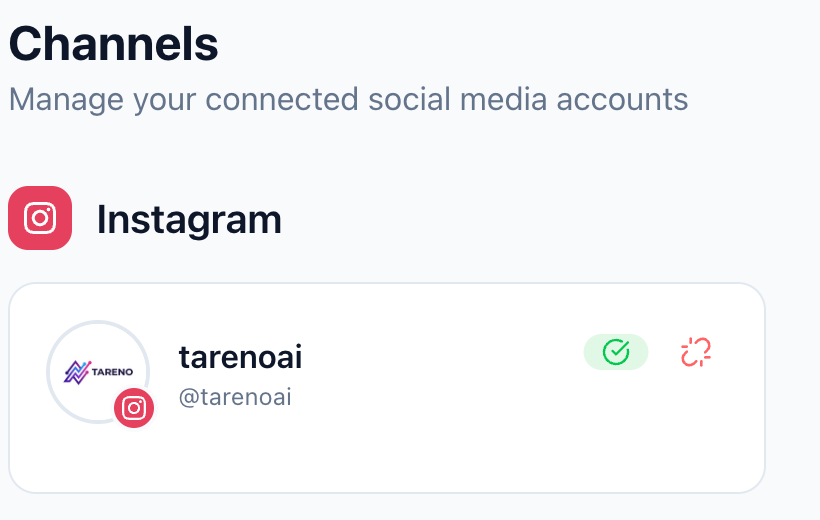
The Channels screen is where the service-side connection becomes visible. In this existing capture, the Instagram account card identifies the connected handle; this is separate from installing a plugin in Claude.
Step 5: Verify in a new conversation
Open a new conversation so the tools load, then send:
Run list_accounts and show me which social accounts are connected.
The practice should see its Instagram and LinkedIn accounts. Buffer's guide uses the same idea for its connector, with the test prompt "List my Buffer channels" (Buffer). If the list is empty, go to the failure table below.
Step 6: Turn the handout into drafts
In Cowork, the practice attaches the PDF and gives a brief:
Read the attached handout "Neck mobility at the desk".
Create two drafts with create_drafts:
1. Instagram carousel: one slide per exercise, short caption, three photos in order.
2. LinkedIn text post with one image, aimed at office workers.
Do not schedule anything yet.
The expected output is two drafts: an Instagram carousel and a LinkedIn text post with an image. Drafts are created directly. Before moving on, a person opens both drafts in Tareno and checks that the three photos are attached and that the order is right.
The MCP access and approval documentation covers the shared connection boundary. For adapting a source into visual slides, the Claude Instagram report-to-carousel guide provides a related format example.
Step 7: Request scheduling and approve it
Schedule both drafts for next Tuesday at 08:00.
This does not publish anything. According to Tareno's agents page, scheduling, publishing, edits and deletes first create a pending action, and nothing goes out until a person approves it in the Tareno dashboard. Ask Claude to report back with get_action_status to see whether the request is still waiting. The exact look of the approval screen is not described in the sources used here, so this guide does not describe buttons or menus.
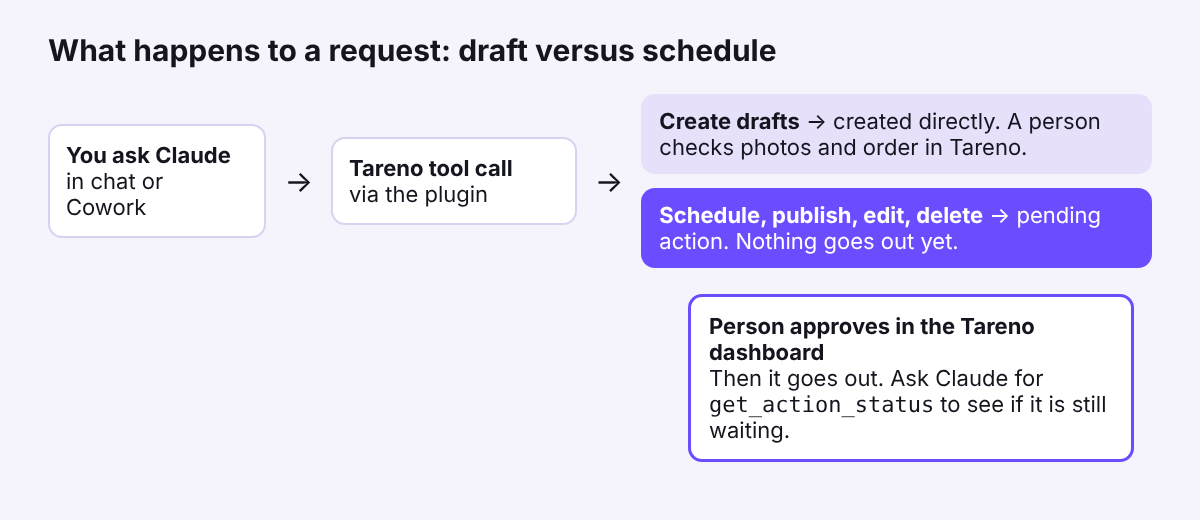
Drafts are created directly; scheduling and publishing wait for a person's approval.
Before approving, the therapist reads both posts for health claims. A line such as "this exercise relieves neck pain" is a promise the practice may not want to make. That is editorial advice, not a legal statement.
When chat is enough, when Cowork, when Claude Code
- Chat: one prompt, one post. You write the idea and want a draft in your queue.
- Cowork: you start from a document and want several outputs, as in the example.
- Claude Code: developers who already work there. Claude Code syncs plugins at start from version 2.1.273 and not with an API key or Bedrock, per the Claude docs. Hooks and sub-agents run only in Cowork and Code.
What goes wrong, and what to try
| Symptom | Likely cause | Try |
|---|---|---|
| Tareno tools do not appear | Tool list not refreshed | Open a new conversation |
| Still missing | Plugin or connector not switched on for this chat, or stale connection | Switch it on in the tools menu, start a new conversation, then disconnect and reconnect once (Tareno guide) |
list_accounts is empty |
No accounts connected, or wrong Tareno login | Connect accounts in the dashboard; check which Tareno account you authorized |
| Plugin option is not visible | Claude plan | Check the plan against the Claude docs; custom connector is an alternative |
| Claude cannot reply to comments | Not supported | Claude cannot post comment replies, per Tareno's guide |
| Nothing was posted | Approval pending | Approve or reject the pending action in the dashboard |
When to use this setup, and when not
Use it when you already work in Claude, want drafts from documents or notes, and want a person to approve every publish or schedule action.
Skip it when you need video or carousel creation from Claude itself. Buffer's guide says Claude does not create video or carousels in its setup. Our example assumes the photos already exist. Also skip it if you want fully unattended posting, because Tareno's approval step is deliberate.
Key takeaways
- A plugin bundles skills, commands and connectors; a connector links one service.
- Install in Claude, connect social accounts in the service dashboard, then verify with
list_accounts. - Use a new conversation after authorization.
- Check which Tareno plan includes MCP access before you start.
- Read health or other sensitive claims yourself before approving.
FAQ
Do I need a paid Claude plan to install a social media plugin?
The Claude plugin documentation names Pro, Max, Ultra, Team and Enterprise and does not mention Free. Custom connectors are available to Free users, who get one, per the connectors article.
Where do I connect my Instagram and LinkedIn accounts?
In the Tareno dashboard, not in Claude. Claude only reaches the accounts you connected there. Use list_accounts to confirm.
Does Claude post immediately?
Not through Tareno. Scheduling and publishing wait for approval (see Step 7).
Is the Tareno plugin official from Anthropic?
Not as an Anthropic product, according to Tareno: its guide says the plugin is listed with a Community label as of 26 October 2026. Check the label in your own Claude view.
Can I use an API key instead of OAuth in Claude?
The documented Claude route is OAuth. Tareno documents the API-key route for Codex, so this guide does not offer it as a Claude step.
What does it cost?
Tareno's Free plan has 2 channels, 15 scheduled posts and 10 AI credits per month, but its pricing page lists Automation API access as No on Free and Starter. MCP access is documented for Trial, Pro and Business, not Free or Starter. Pro is $49/mo billed monthly or $37/mo billed yearly (US price), and the 14-day trial needs a payment method. Claude plans are priced separately by Anthropic.
Conclusion
Installing is the short part: add the plugin, sign in, connect accounts in the dashboard, verify with list_accounts. The decision that matters is the approval gate. Set it up before the first post goes out. To try the flow, start with Tareno's Claude setup guide.