AI Clip Studio: turn long videos into short clips
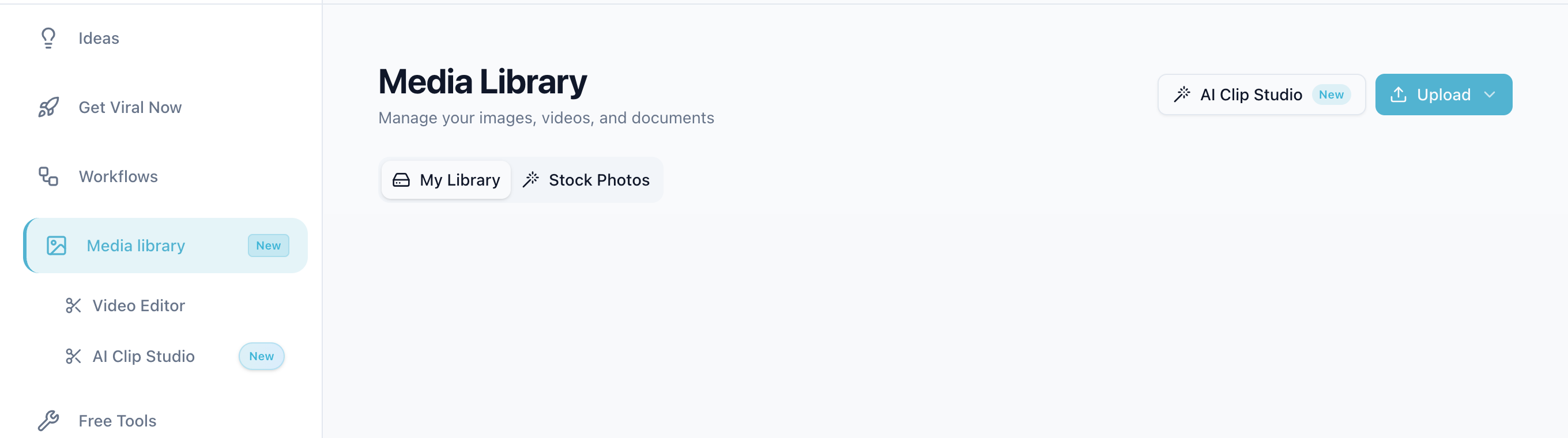
AI Clip Studio finds the strongest moments in a long video, such as a podcast, interview, talk or stream, and turns them into vertical clips with captions for TikTok, Reels and Shorts. You find it in the sidebar under Media Library, marked New.
Only use videos you own or have the rights to reuse.
Want the overview first? See the AI Clip Studio feature page.
1. Pick a source and tell us about your channel
Use the input field at the top. It works two ways:
- Paste a link to clip it right away: YouTube, Twitch (past broadcasts and clips) or a social video from TikTok, Instagram, Facebook, X, Threads, LinkedIn or Pinterest.
- Type a topic to search YouTube without leaving Tareno, for example "startup interview" or "GTA 6 gameplay".
You can also add a video from your device, from your Media Library or from Google Drive. The first time you use Google Drive you connect your account, then you return to AI Clip Studio.
Before you start, choose what your channel is about: Motivation, Business and startups, Knowledge, Entertainment, Stories or Hot takes. The AI then looks for the moments your audience cares about. A motivation channel gets mindset and comeback moments from the same video that gives a business channel concrete tactics. Your choice is remembered. You can also change it later with Find other moments.
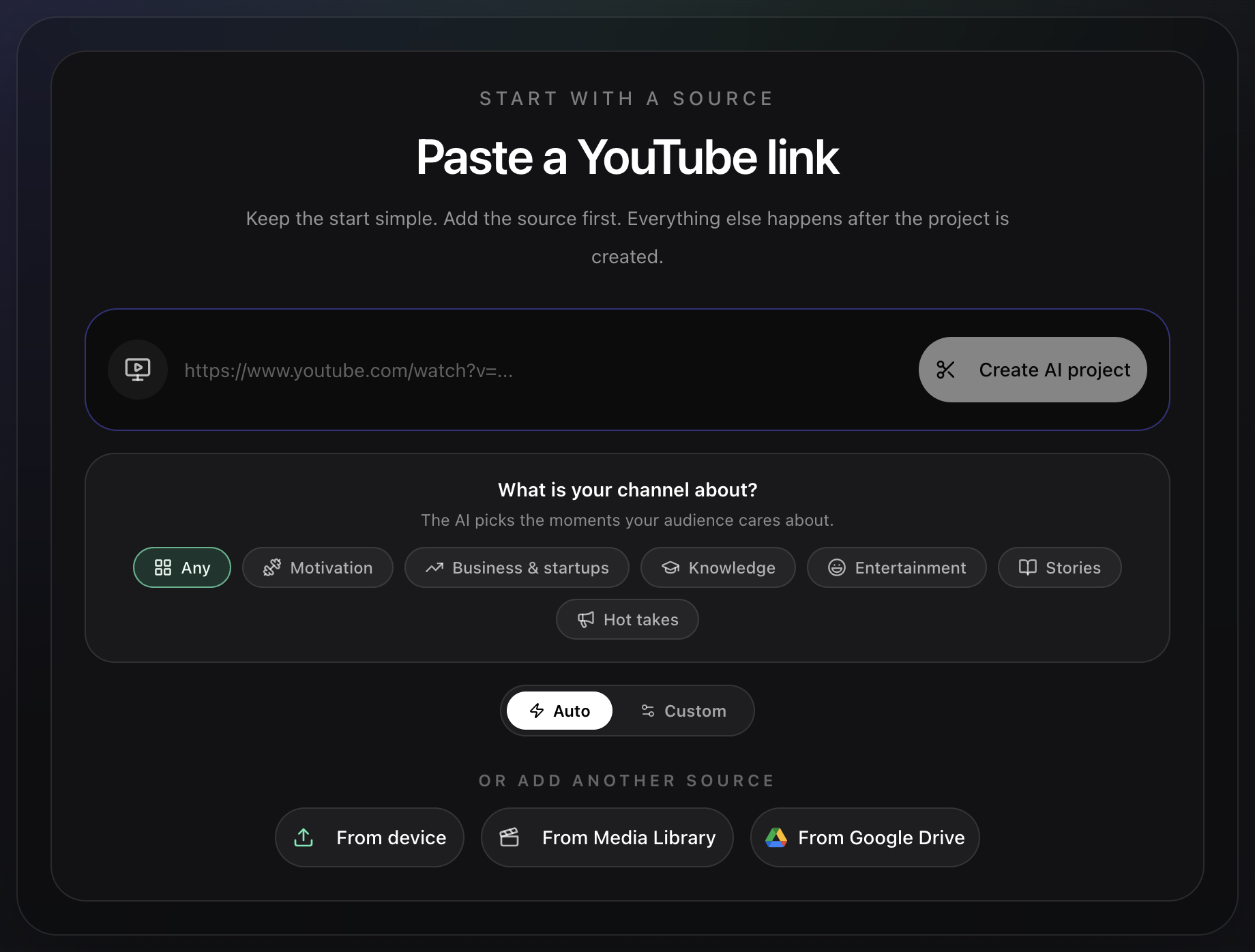
Choose how many clips you want (3, 5, 8 or 12). The AI suggests up to that many, depending on how many strong moments the video has. Under Custom you can also set the clip length, the content style and your own instruction, for example "find the strongest pricing explanations".
Search YouTube and check the clip potential
When you type a topic, the results show length, views and a clip potential rating (high, medium or low) with a score. Select the rating to see why: length, spoken format such as podcast or interview, audience reaction and views per day. Each result also shows roughly how many clip minutes it would use. Filter by length (over 20 minutes, 3–20 minutes, any) and upload date, or sort by best clip potential.
Select Preview to watch the video inside Tareno, then Clip this to start. Searching costs no clip minutes.
Clip Twitch streams
Paste a finished broadcast (twitch.tv/videos/...) or a Twitch clip. To start at a certain point of a long stream, add the time to the link, for example ?t=1h20m. A stream that is still live can be clipped once Twitch has saved the broadcast. Channel pages without a video are not supported.
2. Choose your moments
The AI suggests several moments. Each card shows a viral score from 0 to 100. It is the AI's estimate of how strong the hook is and how shareable the moment is. Green is 80 or higher, yellow is 60 or higher. Hover a card to watch it, tick the moments you want and continue.
If you want different picks, change the focus and select Find other moments. Your finished clips stay as they are.
3. Customize each clip
For every clip you can adjust:
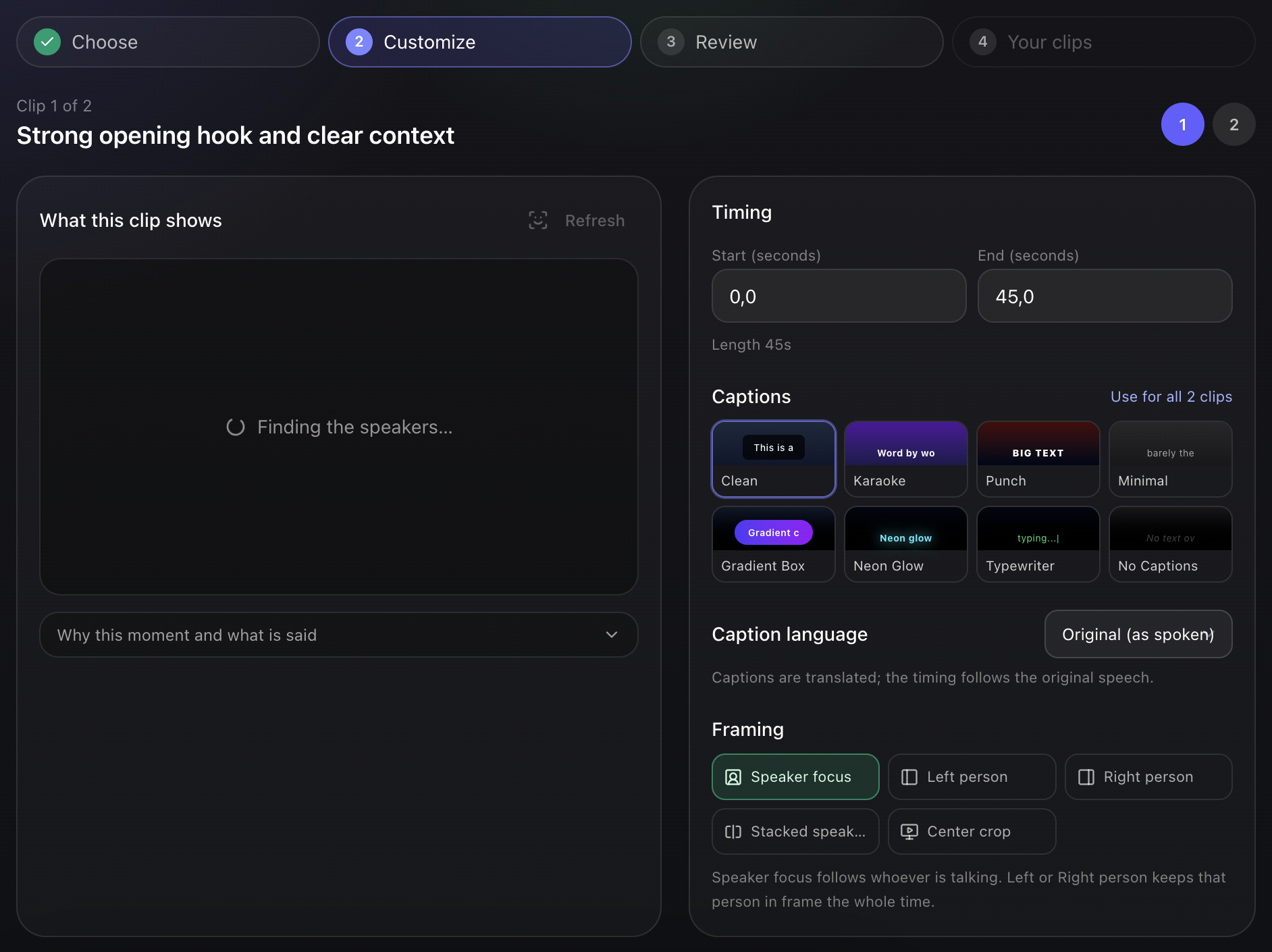
- Timing: start and end in seconds.
- Captions: pick one of eleven styles and the caption language. Captions can be translated, for example an English video with German captions for a German channel. The timing follows the original speech.
- Framing: follow the active speaker, keep the left or right person in frame, stack both speakers, crop to the center, or use a stream layout: Streamer + screen (webcam on top, game or screen below), Streamer only or Screen only.
- Title banner: a headline as TikTok sticker or Snapchat bar, with viral suggestions, six colors, four fonts and a position.
- Color filter and sound effect, including your own sound file.
Fix the webcam area in stream layouts
Tareno finds the streamer's webcam automatically and keeps room above the head. If the crop is off, use the buttons under Webcam area:
- Higher and Lower move the area.
- Closer and Wider zoom in or out.
- Set it yourself opens a still of the video. Drag the frame onto the webcam and resize it with the corner at the bottom right, then select Apply.
- Automatic goes back to the detected area.
Use the same settings for all clips
Select Use these settings for all clips at the top to copy captions, framing, webcam area, title design, filter and sound from the clip you are editing to every selected clip. Times and the title text stay per clip. Each section also has its own Use for all link.
4. Create, post and refine
Select Create clips. Finished clips are saved to your Media Library. From each clip you can:
- Post it, which opens the composer with the clip attached.
- Download it.
- Change captions: pick a new style or language, and only this clip is created again. Your other clips stay untouched.
- Open in the video editor for fine-tuning.
Let the Tareno Agent do it
In the Agents chat you can also ask for clips, for example "Clip this video and post it to TikTok tomorrow at 6 pm" with a link, or "Search YouTube for an AI podcast and clip the best video". The agent clips the video with title banners, filters and sound effects and schedules or posts it to the accounts you name. If something is unclear, it asks first.
Fine-tune in the video editor
The video editor opens the original video, trimmed to your clip, with the captions as a live layer. Change the caption style, size and words per caption, and the preview updates immediately.

- The timeline has separate tracks for video, captions and audio, and zooms to your clip.
- Split the clip at the playhead with S or the scissors tool. Every cut shows as a white line with a scissors icon.
- Delete a part with Delete. Removed parts are shown hatched in red, and you can restore them with one click.
- Undo and redo with Cmd+Z and Shift+Cmd+Z (Ctrl+Z and Ctrl+Y on Windows).
Clip minutes and credits
- AI Clip Studio requires Plus, Pro or Business, including eligible trials. Free and Starter do not include it.
- Each minute of analysed video uses one clip minute, no matter how many clips you get. Plus includes 150 clip minutes a month, Pro 300 and Business 800, separate from your AI credits. One video can be up to 180 minutes. During the trial there is a daily limit of 5 analyses.
- When your monthly minutes are used up, each further minute costs 2 AI credits.
- Minutes and credits are only charged after a successful analysis. Searching YouTube, a failed or empty analysis, finding other moments in the same video, reframing and rendering cost nothing.
- The clip minutes appear next to your credits at the top of the dashboard, and in AI Clip Studio you see minutes used, minutes free and the refresh date. Select the info icon for details.
Good to know
- Videos need spoken content. If a video is too short or has too little speech, you see a clear message and no clip minutes are used. For gaming streams, commentary works best: the AI finds moments mainly from what is said.
- Captions are created from the spoken language of the video. For videos that YouTube offers in several dubbed languages, we use the original audio.
- In fullscreen, finished clips always show the whole vertical video.
What to do next
Plan your clips in the calendar or learn more about the Media Library.
Was this article helpful?
Your feedback helps us improve our documentation.
Last Updated